
Contents
- About Emberswarm
- Installing
- First-run setup
- The main window
- Adding torrents
- Managing transfers
- Files and folders
- Speed, queue and seeding
- Privacy and security
- Search
- RSS and automation
- Creating torrents
- Remote access
- Speed, statistics and log
- Updates
- Moving from qBittorrent
- Portable copy and command line
- Keyboard shortcuts
- What Emberswarm contacts
- Troubleshooting
- Uninstalling
- Legal use and licence
About Emberswarm
Emberswarm is a BitTorrent client: it downloads files from other people who share them, and shares what you have with others, piece by piece. It runs on your own Windows PC and needs no account and no service of ours.
Three promises shape it:
- No cloud. Your downloads, settings, history and passwords stay on your computer. Data moves only between your PC and the peers, trackers and sites you chose.
- Nothing added for revenue. No ads, bundled software, paid tiers, tracking or affiliate offers.
- Every contact is yours to allow. Search, RSS, remote access and the update check start off. Before Emberswarm first goes online, the setup shows what it will contact. The full list is in What Emberswarm contacts.
Emberswarm has two parts: an engine that does the downloading, and the window you see. The window is a web page served by the engine on your own PC, so the same interface also works in a browser on your phone when you allow it (see Remote access).
Installing
Emberswarm 1.0 runs on Windows 11, 64-bit. It may run on 64-bit Windows 10, but that has not been tested yet. Everything it needs is inside the download, and installing it contacts nothing on the internet.
With the installer
- Download
Emberswarm-Setup-1.0.5.exeand run it. - If Windows shows Windows protected your PC, choose More info, then Run anyway. Emberswarm is code-signed by XN3 Technologies, and SmartScreen can still warn about a newly signed program for a while: check that More info names XN3 Technologies as the publisher before you run it. You can also check the file first: in PowerShell,
Get-AuthenticodeSignature .\Emberswarm-Setup-1.0.5.exemust showValid, andGet-FileHash .\Emberswarm-Setup-1.0.5.exethe SHA-256 listed on the download page. - Choose who it is for:
- Only for me installs into your own user folder and needs no administrator rights.
- Anyone who uses this computer asks for administrator rights once and also adds Windows Firewall rules so peers can connect to you.
- Open Emberswarm from the Start menu. The first-run setup starts.
The installer also makes Emberswarm open magnet: links and .torrent files. Opening one while Emberswarm runs passes it to the window that is already open.
Windows Firewall
When Windows asks whether to allow Emberswarm on networks and you cancel, Windows quietly adds rules that block incoming connections. Emberswarm notices this and shows a banner with a button that fixes it. Downloads still work without incoming connections, only more slowly.
The portable copy
Prefer not to install? Unzip Emberswarm-1.0.5-portable.zip to a folder or USB drive and run Emberswarm.exe. See Portable copy and command line.
First-run setup
The first time Emberswarm starts, a short setup walks you through the choices that matter. Until you finish it, Emberswarm stays offline: no peers, no trackers, no router mapping and no DHT. You can open it again any time from Tools › Setup wizard.
| Step | What you choose |
|---|---|
| Folders | Where downloads go, and optionally a separate folder for unfinished downloads. |
| Port | The port other peers connect to. A random port is picked for you; most people keep it. |
| Network route | Connect directly, through a VPN adapter, or through a proxy. |
| Discovery | How peers are found: DHT, local peer discovery, and automatic port mapping on your router (UPnP and NAT-PMP). The DHT starting points it will contact are listed. |
| LAN access | Whether other devices on your network may use Emberswarm. Off unless you choose otherwise. |
| Privacy profile | One of the privacy profiles. Standard is the default. |
| Limits | Optional download and upload speed limits. |
| Review | Everything Emberswarm will contact, and the optional daily update check. Nothing goes online until you press the button here. |
The main window
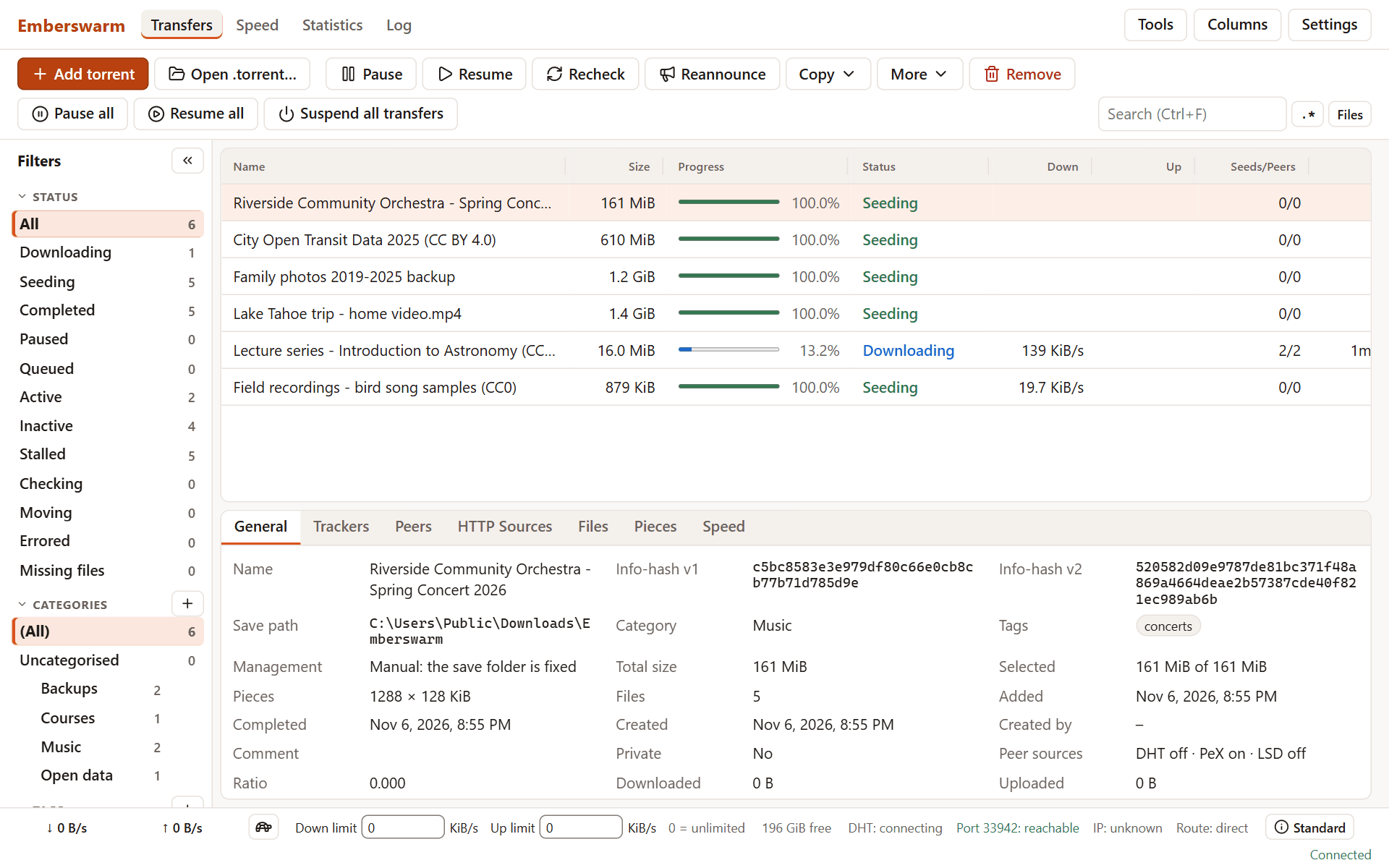
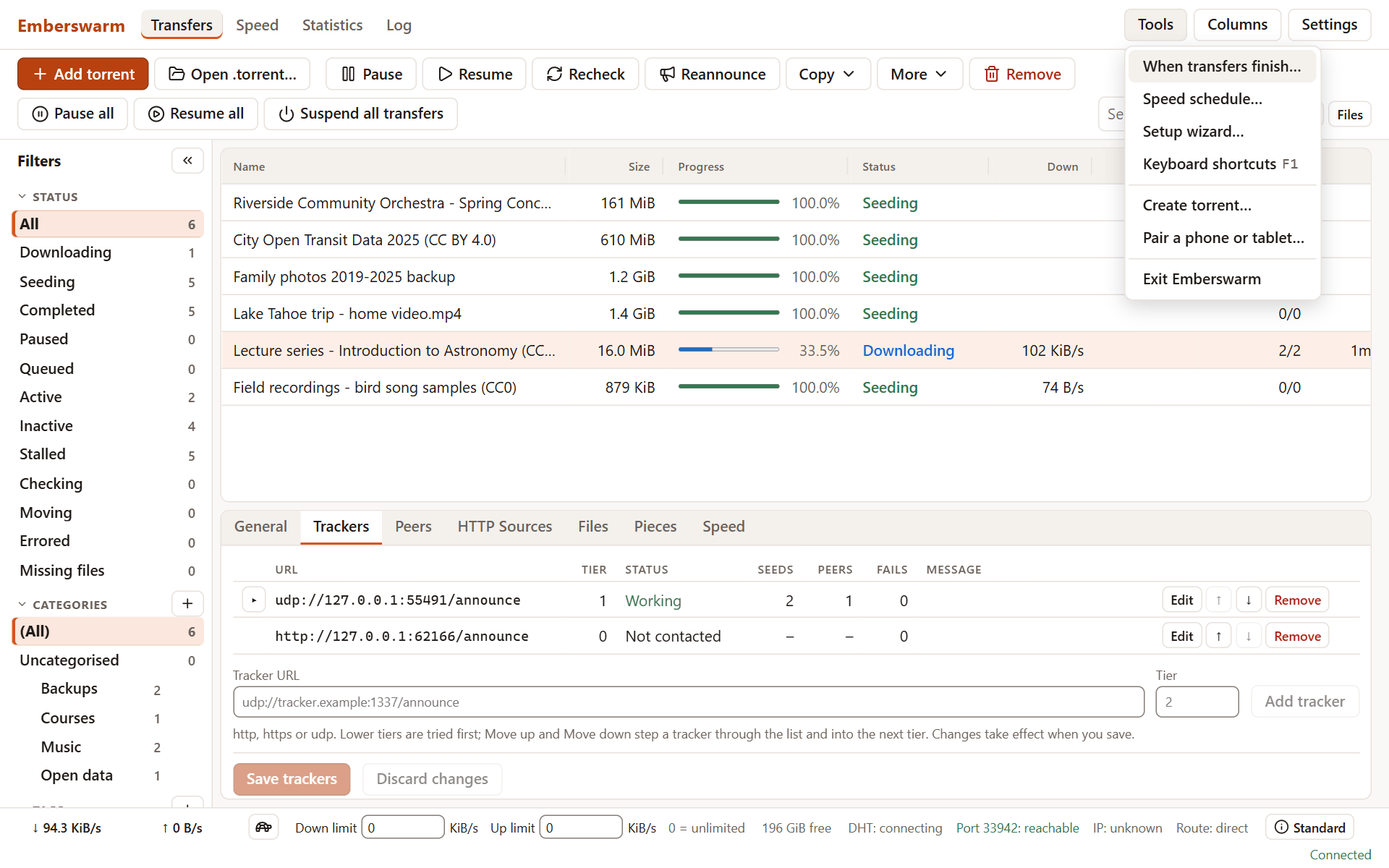
- Views at the top: Transfers, Speed, Statistics and Log, plus Search and RSS when you turn them on.
- The toolbar: add torrents, open a
.torrentfile, pause, resume, recheck, reannounce, copy, more actions and remove. The second row pauses or resumes everything, or suspends all transfers at once. - Filters on the left: by status (downloading, seeding, paused, stalled, errored and more), category, tag, tracker and folder, each with a live count. Click « to fold the panel away.
- The transfer list: choose columns with Columns, drag to reorder or resize them, and click a heading to sort. The search box (Ctrl+F) filters by name; .* turns on regular expressions and Files also searches file names inside torrents.
- Details for the selected torrent: General, Trackers, Peers, HTTP Sources, Files, Pieces and Speed.
- The status bar: total speeds, quick speed limits, the alternative-limit button (the turtle), free disk space, DHT and port status, your public address as peers report it, the network route and the privacy badge.
Right-click a torrent for its menu, or select several and act on them together. Closing the window keeps Emberswarm running in the notification area (the tray) if you set it to; the tray icon shows your speeds and has a menu for pausing, limits and quitting. To quit completely, use Tools › Exit Emberswarm.
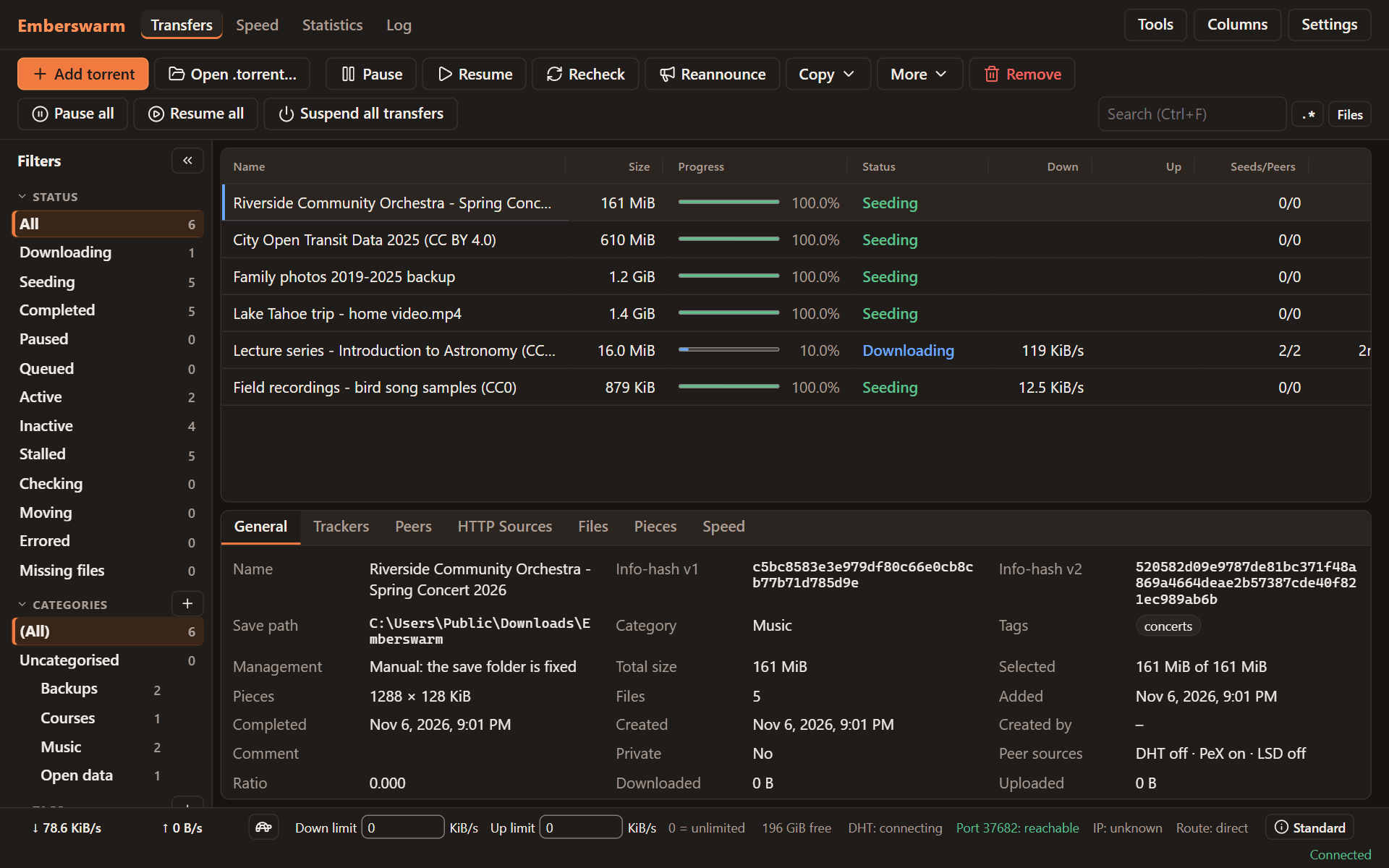
The look follows Windows’ light or dark mode. Settings › Appearance and language also offers a high-contrast theme and your own colours for each state.
Adding torrents
Click Add torrent (Ctrl+O) and choose:
- Torrent files: one or more
.torrentfiles from your PC. - Link or info-hash: a magnet link, a web link to a
.torrentfile, or a bare info-hash (40 or 64 characters). - Paste many: a block of links, one per line, added in one go.
You can also drop files or links on the window, press Ctrl+V with links on the clipboard, or open a magnet link in your web browser.
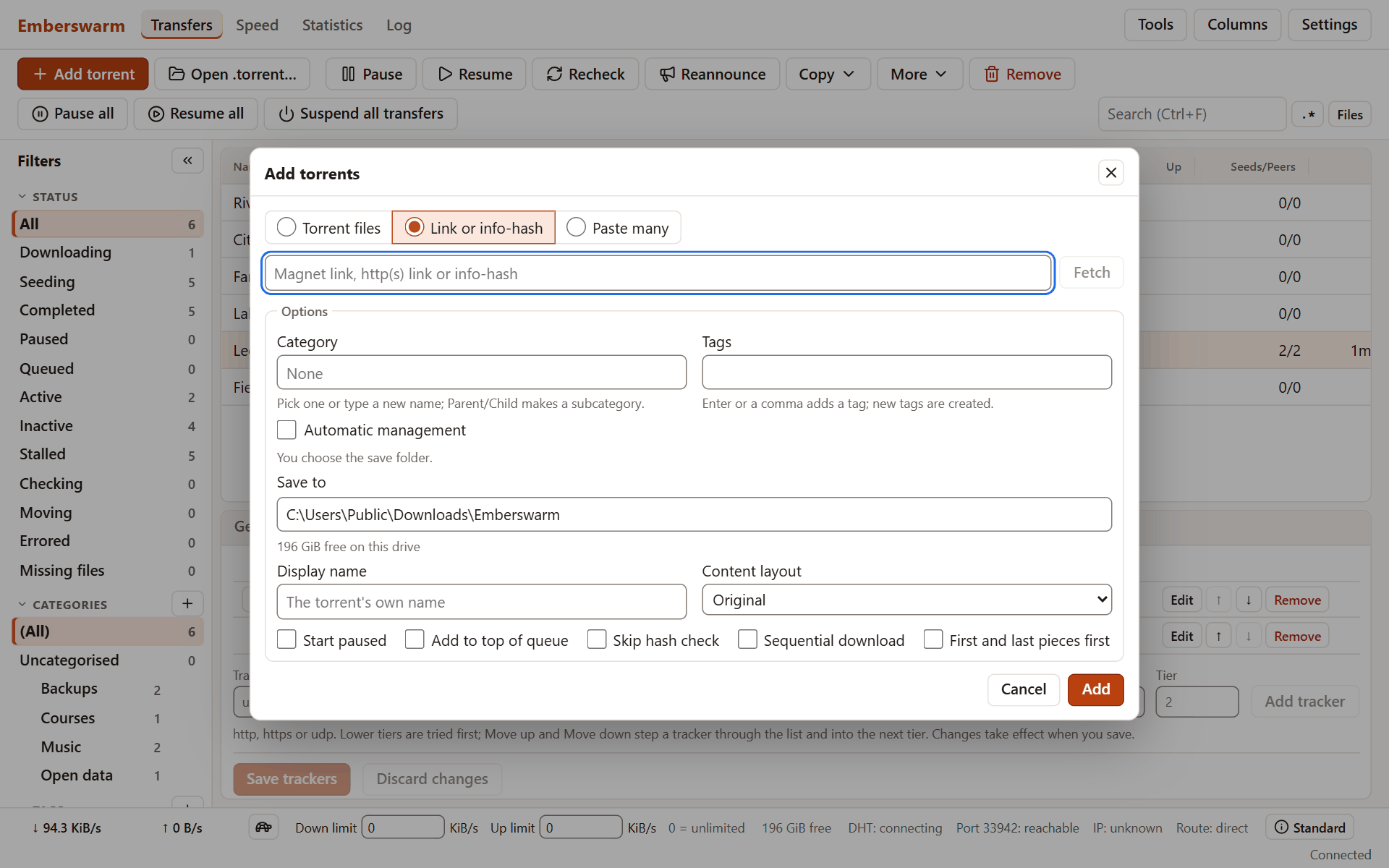
For a magnet link, Fetch gets the file list from peers first, so you can choose which files to download before anything else arrives. The options:
- Category and tags: a category can have its own folder; type a new name to create one. Use
Parent/Childfor subcategories. - Automatic management: the save folder follows the category, and changing the category later moves the files.
- Save to: the folder for this torrent, with the free space on that drive below it. In the desktop app, Browse… beside it picks a folder.
- Display name: what the list shows; the files keep their own names.
- Content layout: keep the torrent’s own layout, always create a subfolder, or leave out its top folder.
- Start paused, Add to top of queue, Skip hash check (when you already have the data), Sequential download and First and last pieces first (for previews).
To add torrents without this dialog, turn on Settings › Downloads › Add torrents without the dialog. Adding a torrent you already have merges its trackers into the existing one instead of failing.
Watched folders
Settings › Watched folders picks up .torrent and .magnet files dropped in a folder, with that folder’s own save path, category, tags and start state.
Managing transfers
- Pause and resume (Ctrl+P and Ctrl+S), or Suspend all transfers to stop the whole session while each torrent keeps its own state.
- Force start runs a torrent regardless of the queue limits.
- Recheck verifies the downloaded data against the torrent; Reannounce asks the trackers and DHT for more peers now.
- Queue: move torrents up, down, to the top or the bottom. The order is kept across restarts.
- Rename (F2) changes the name shown; you can also change the comment, category and tags.
- Copy the magnet link, info-hashes, name or folder; Ctrl+C copies magnet links.
- Move a torrent’s files to another folder while it keeps running.
- Remove (Delete) takes the torrent off the list and keeps its files. Shift+Delete also removes its files, to the Recycle Bin. On drives without a Recycle Bin, Emberswarm asks before deleting anything for good.
Select several torrents to change their folder, limits, category, tags, priority or trackers in one step.
Trackers, peers and web sources
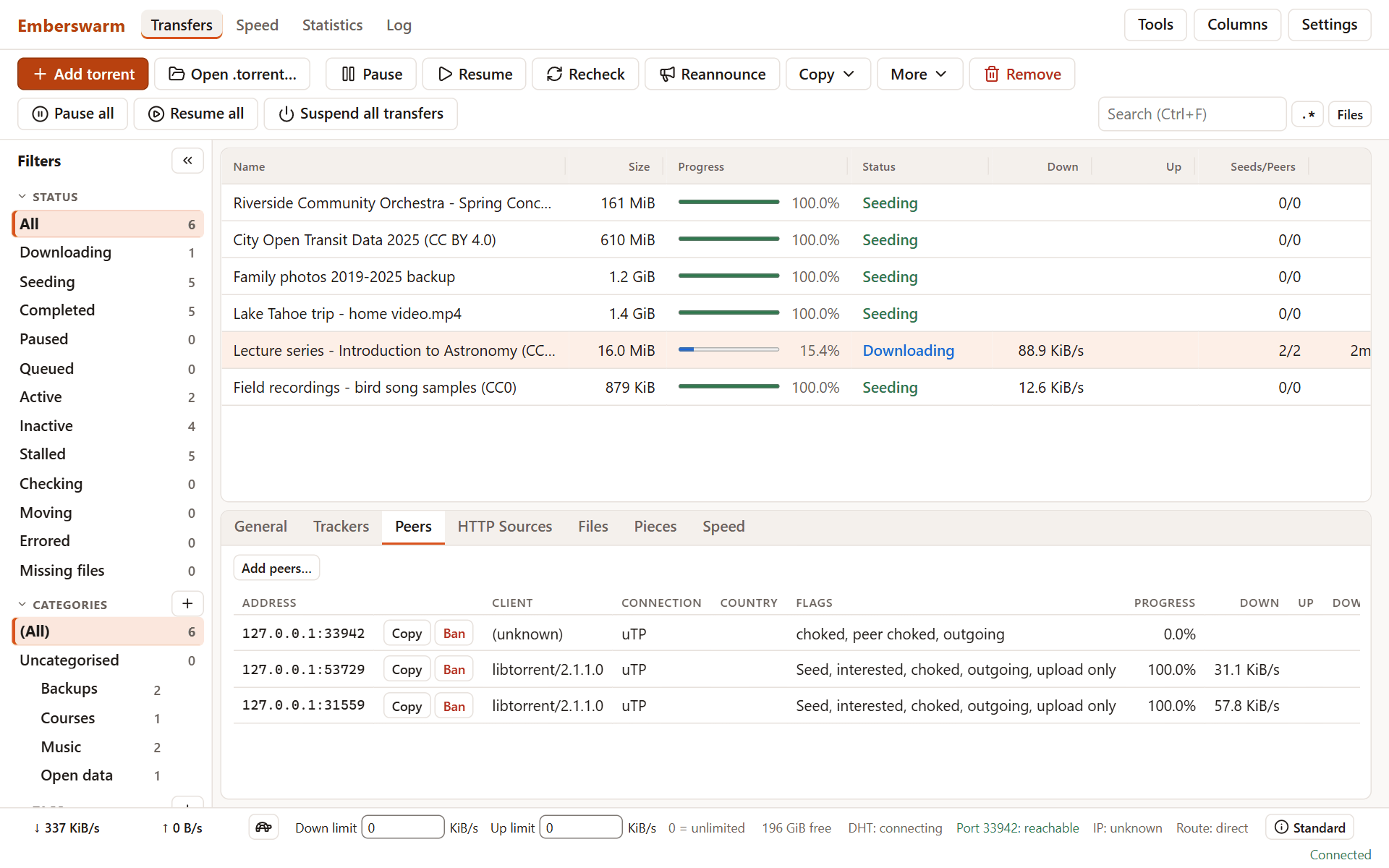
The Trackers tab adds, edits, reorders and removes trackers and tiers, with each tracker’s status and counts. Peers lists who you are connected to, with their client, progress, speeds and country (from a database that ships with Emberswarm; nothing is looked up online). You can add peers by address, and ban or disconnect a peer. HTTP Sources edits the web mirrors a torrent can also download from.
Files and folders
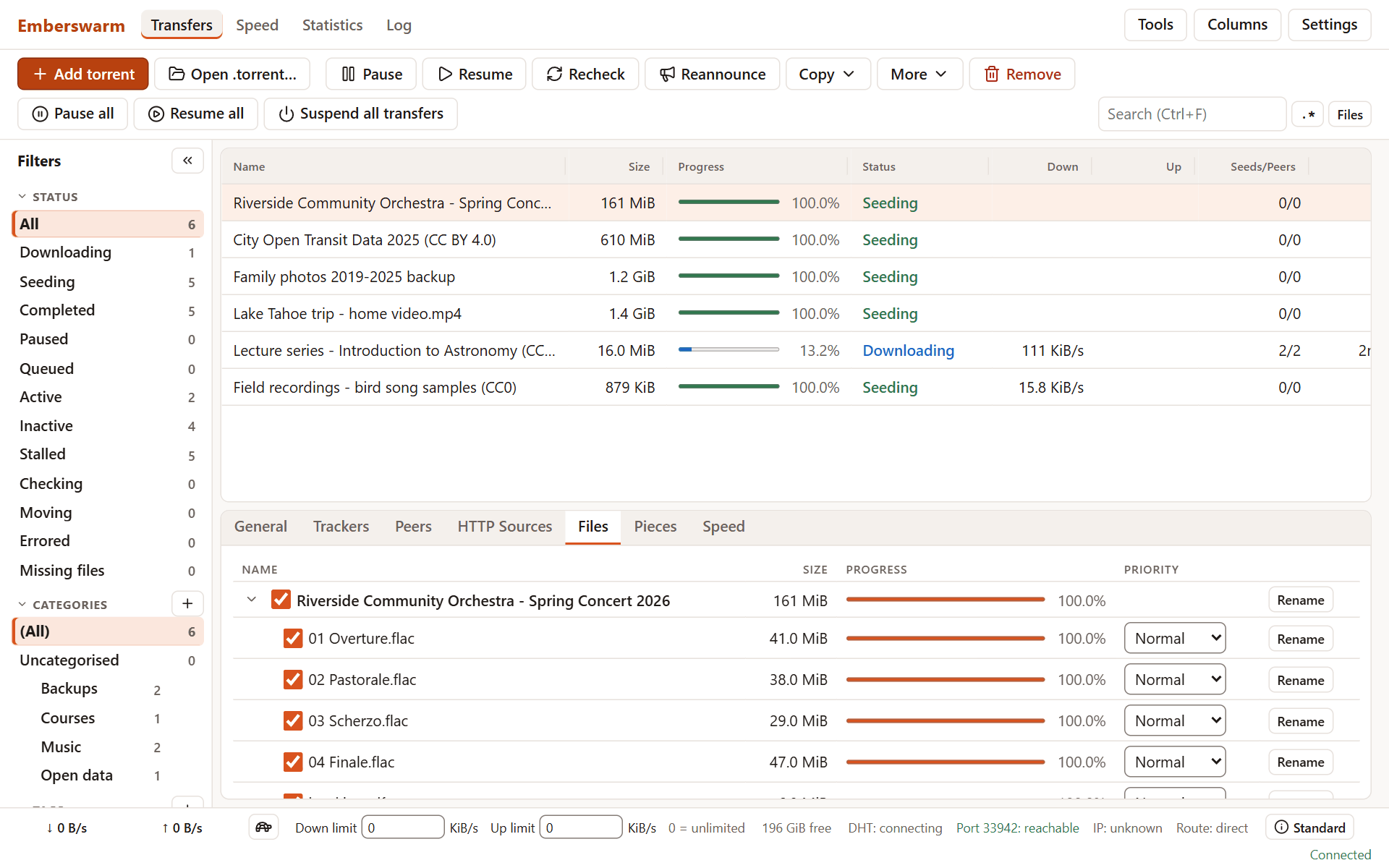
- Choose files: untick files you do not want. Set each file’s priority from skip to maximum.
- Rename files and folders inside a torrent; the files on disk are renamed too.
- Open a downloaded file, or show it in File Explorer. Downloaded files are marked as coming from the internet, so Windows warns before running a program you downloaded.
- Unfinished downloads can wait in a separate folder and move to the final folder when complete, and can carry an extra file extension so other apps leave them alone (Settings › Downloads and storage).
- Missing files: if a torrent’s files disappear, Emberswarm offers to download them again, point to where they are now, or remove the torrent. It never fails silently.
- Existing data: point a torrent at files you already have, and Emberswarm checks them and carries on.
- Disk errors switch a torrent to upload-only instead of stopping it. Clear the error to try again.
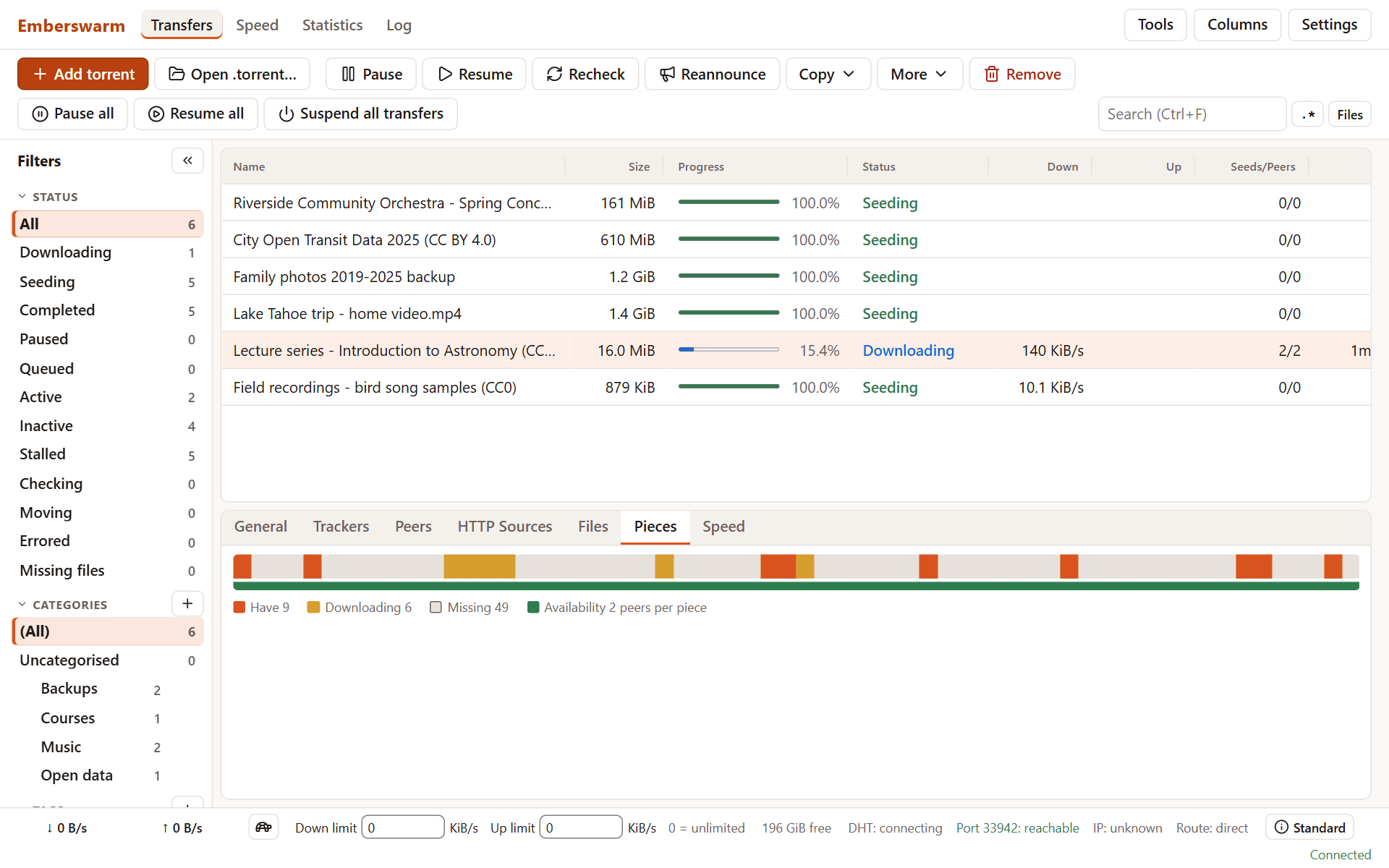
The Pieces tab shows which parts you have, which are arriving, and how many peers have each part.
Speed, queue and seeding
Speed limits
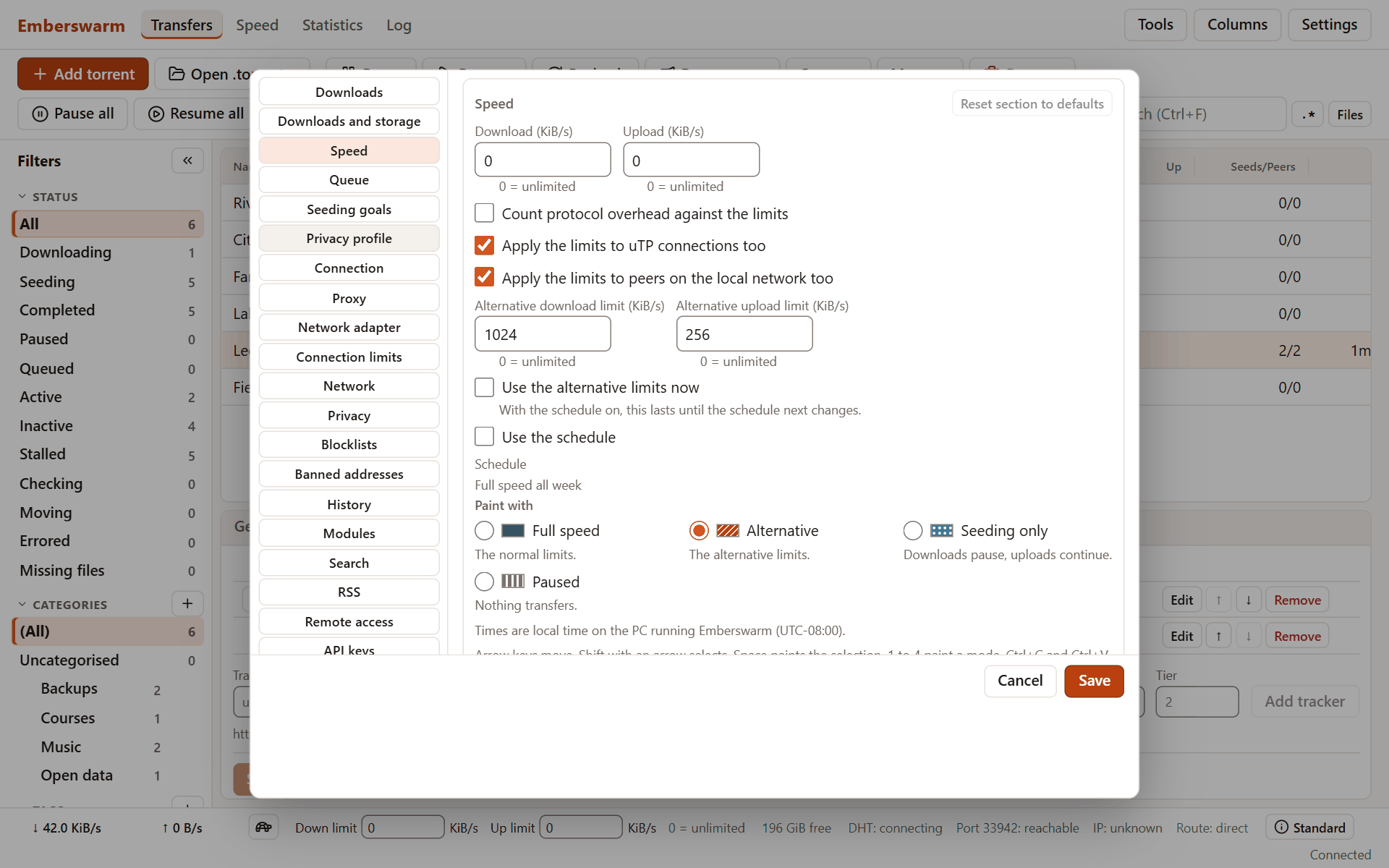
Set overall limits in the status bar or Settings › Speed, and per-torrent limits from a torrent’s menu. The alternative limits (the turtle button, or Ctrl+Shift+L) switch to a second, usually slower, pair of limits.
The schedule (Tools › Speed schedule) paints a weekly grid in half-hour slots: full speed, alternative limits, seeding only or paused.
The queue
Settings › Queue caps how many torrents download and seed at once; the rest wait their turn. Torrents that are stalled or barely moving can stop counting toward the limits. When free space on the download drive runs low, downloads pause and Emberswarm tells you.
Seeding goals
Seeding gives back to the people you downloaded from. Settings › Seeding goals stops seeding at a share ratio, after a seeding time or after a time without uploads, and chooses what happens then: stop, remove, remove with files, super-seed or slow down. Categories, tags and single torrents can have their own goals.
Privacy and security
In BitTorrent, peers and trackers see the IP address you connect from. Emberswarm’s privacy tools decide which address that is and make sure nothing slips out another way.
Privacy profiles
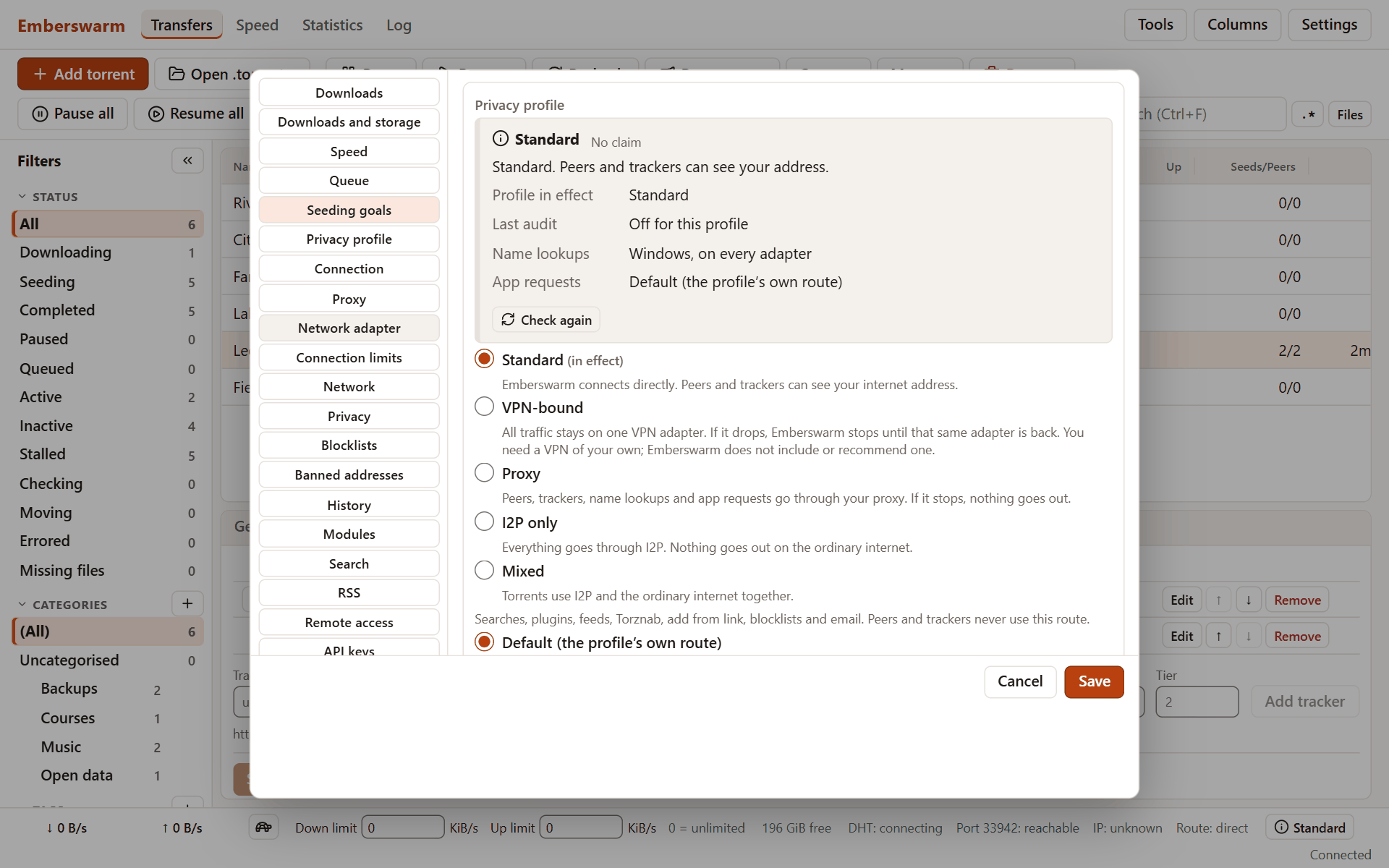
Settings › Privacy profile holds one profile for the whole session. Choosing one sets all the related settings together, and Emberswarm asks you to confirm any change that would make you less private.
| Profile | What it does |
|---|---|
| Standard | The default. Emberswarm connects directly. Peers and trackers can see your internet address, and the badge says so rather than claiming protection. |
| VPN-bound | All traffic stays on the VPN adapter you choose. If it drops or changes, Emberswarm pauses all networking within a second and resumes only when the same adapter is back. At start-up it waits for the VPN before going online. |
| Proxy | Peers, trackers, name lookups and app requests go through your SOCKS5 or HTTP proxy, never around it. |
| I2P only | Everything goes through the I2P network; nothing goes out on the ordinary internet. Only peers on I2P can be reached. |
| Mixed | Torrents use both I2P and the ordinary internet. Emberswarm explains the trade-off and asks you to accept it. |
What the kill switch covers. VPN-bound protects Emberswarm’s own traffic, not other programs on your PC. It works inside the app: it pauses Emberswarm rather than blocking traffic in Windows Firewall.
The privacy badge and the leak check
In VPN-bound, Proxy and I2P only, Emberswarm reads your PC’s own connection tables every two seconds and checks each of its connections against the profile. The badge in the status bar is:
- neutral in Standard, which claims nothing;
- green once a check found nothing outside the route;
- amber when you are not protected by choice, or the check has not run yet;
- red if a connection went outside the route. Emberswarm then pauses networking and stays red until you choose Clear the warning, even after a restart.
The check sends nothing anywhere. Check again runs it on demand. If you give it an address-check link of your own, a button can also ask that site which address it sees.
More privacy settings
- Proxy (SOCKS5 or HTTP, with a user name and password), choosing what goes through it. There is no direct fallback when it is down.
- Network adapter: bind Emberswarm to one adapter, such as a VPN.
- DNS leak protection: in VPN-bound, name lookups use only the VPN’s DNS servers. You can also set a DNS-over-HTTPS server of your choice; none is preset.
- Encryption: prefer, require or turn off encrypted peer connections. This hides your traffic from throttling, not your address from peers.
- Anonymous mode: peers and trackers are not told which client you use or your local addresses.
- Blocklists: load IP blocklists from files or links you choose and refresh them on a schedule. None is preset. Peers that send bad data are banned automatically; you can also ban addresses yourself.
- Public networks: when Windows marks a network as Public, local peer discovery and router port mapping turn off.
- WebTorrent trackers are left out, so your browser-style connections cannot bypass the route.
I2P
I2P is an anonymous network that some trackers and peers use. Emberswarm reaches it through an I2P router you run yourself (i2pd or Java I2P) with its SAM bridge turned on: choose I2P only or Mixed in Settings › Privacy profile and enter the router’s SAM address. Emberswarm does not include a router of its own. Versions up to 1.0.4 did; see Troubleshooting if your profile used it.
Search and RSS through Tor or I2P
Settings › Privacy profile can also send search, RSS feeds, web links and blocklist downloads through a Tor proxy you run (or your I2P router), with no fallback. Torrent traffic itself never goes over Tor, as the Tor Project asks.
Keeping secrets safe
Passwords for proxies, mail servers, feeds and remote access are kept in Windows’ protected storage and never shown in the log. Logs stay on your PC with addresses and hashes hidden; Settings › History clears them.
Search
Search is off when you install Emberswarm. Turn it on in Settings › Modules; a one-time notice explains that you choose the sources and must follow the law where you live. Then pick sources in Settings › Search. None is turned on for you, not even the built-in ones.
- Built-in sources: the Internet Archive, Academic Torrents, and Linux and BSD releases.
- Torznab indexers: link your own Jackett, Prowlarr or bitmagnet. Test checks the link.
- Search plugins: qBittorrent search plugins work unchanged. Installing one shows its source and checksum and warns you that it is code from someone else.
- Web search shortcuts: open a search on a site in your web browser.
Results stream in from each source, with duplicates merged. Filter and sort them by seeds, size, date or source, and run several searches in tabs. The library search also finds your own torrents by name, file, category or tag.
RSS and automation
RSS lets Emberswarm watch feeds, such as a podcast’s or an open-data publisher’s, and download new items that match your rules. Turn it on in Settings › Modules; no feeds or rules are preset.
- Feeds in folders, each with its own refresh interval. Feeds that need a login can carry cookies, headers or a passkey link.
- Rules match article titles with words, wildcards or regular expressions, and can set the category, tags, folder and limits of what they add. The rule tester shows which articles each rule matches, and why.
- Episodes: filters like
1x2;8-15;30-, skipping episodes you already have, and optional quality preferences that wait for a better release. - Saved searches rerun a search on a schedule (at most every 30 minutes) as a feed your rules can use.
- Import and export feeds as OPML, and rules from qBittorrent.
When things happen
- Notifications on completion, errors and rule matches; click one to open the folder.
- Email through your own mail server (none is preset), with a test button.
- Run a program when a torrent is added, finishes or stops seeding.
- When transfers finish (in Tools): quit, sleep, hibernate, shut down or restart after a countdown you can cancel.
- Keep the PC awake while downloading or seeding (Settings › Power).
Creating torrents
To share your own files, choose Tools › Create torrent and pick a file or folder. You can choose:
- the format: v1, v2 or hybrid (hybrid works with every client);
- the piece size (automatic, or up to 128 MiB);
- trackers, web seeds, a comment, and whether the torrent is private;
- Seed immediately, which adds the new torrent and starts sharing it at once.
Remote access
Out of the box, only your own PC can reach Emberswarm. To control it from a phone, tablet or another computer, open Settings › Remote access:
- Set a password. It is stored as a secure hash, never as text.
- Turn on access from your local network. Optionally limit it to certain addresses and use HTTPS with your own or a generated certificate.
- Choose Tools › Pair a phone or tablet and scan the QR code with your phone’s camera. It opens Emberswarm in the phone’s browser and signs it in with a one-time code. No server of ours is involved.
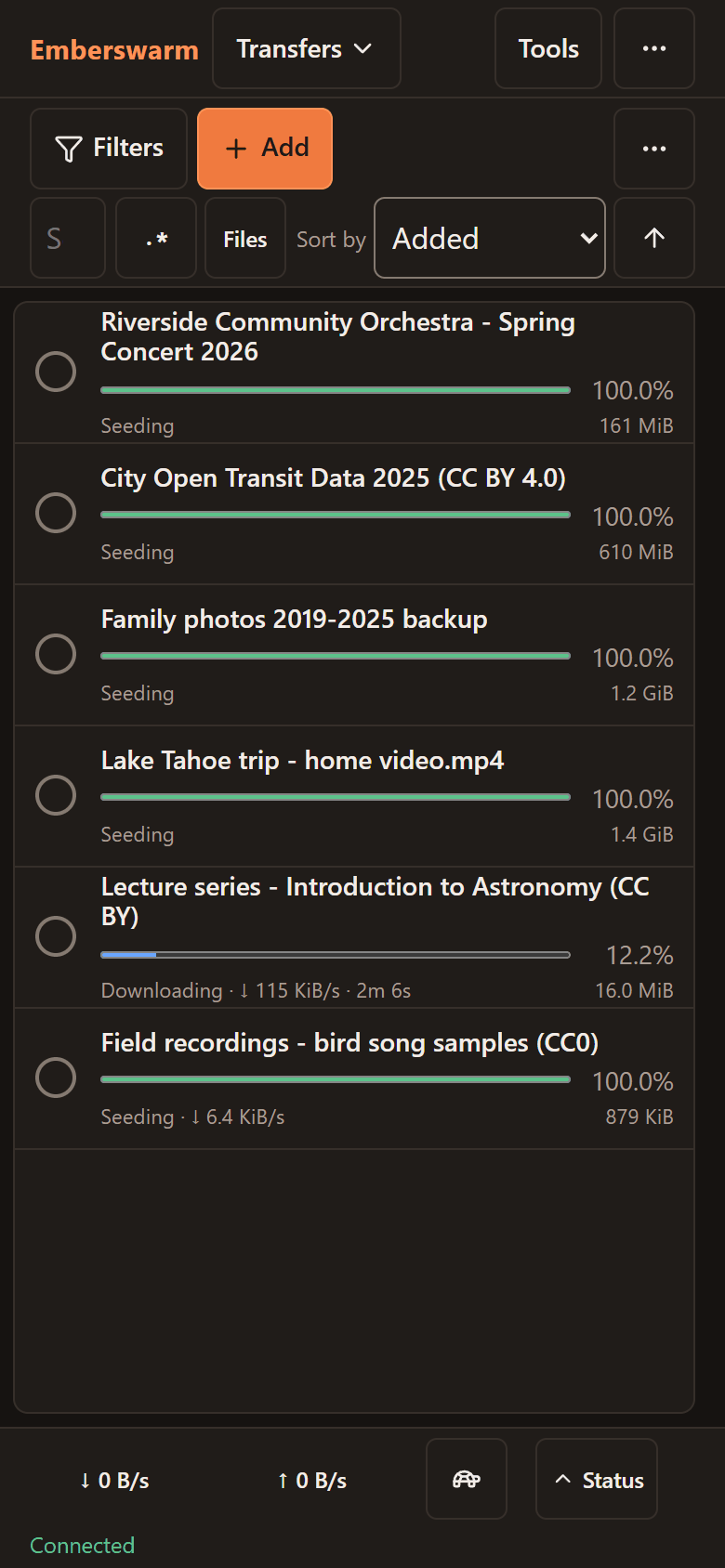
From a phone you can add and manage torrents, and download finished files to the phone. Repeated wrong passwords lock out that address for a while, and idle sessions end on their own. Emberswarm never opens a port on your router for remote access.
For scripts and other tools
Settings › API keys creates keys with limited rights for your own scripts or media tools, separate from your password, and revocable at any time. Emberswarm can also run without a window, at sign-in, and be managed from a browser.
Speed, statistics and log
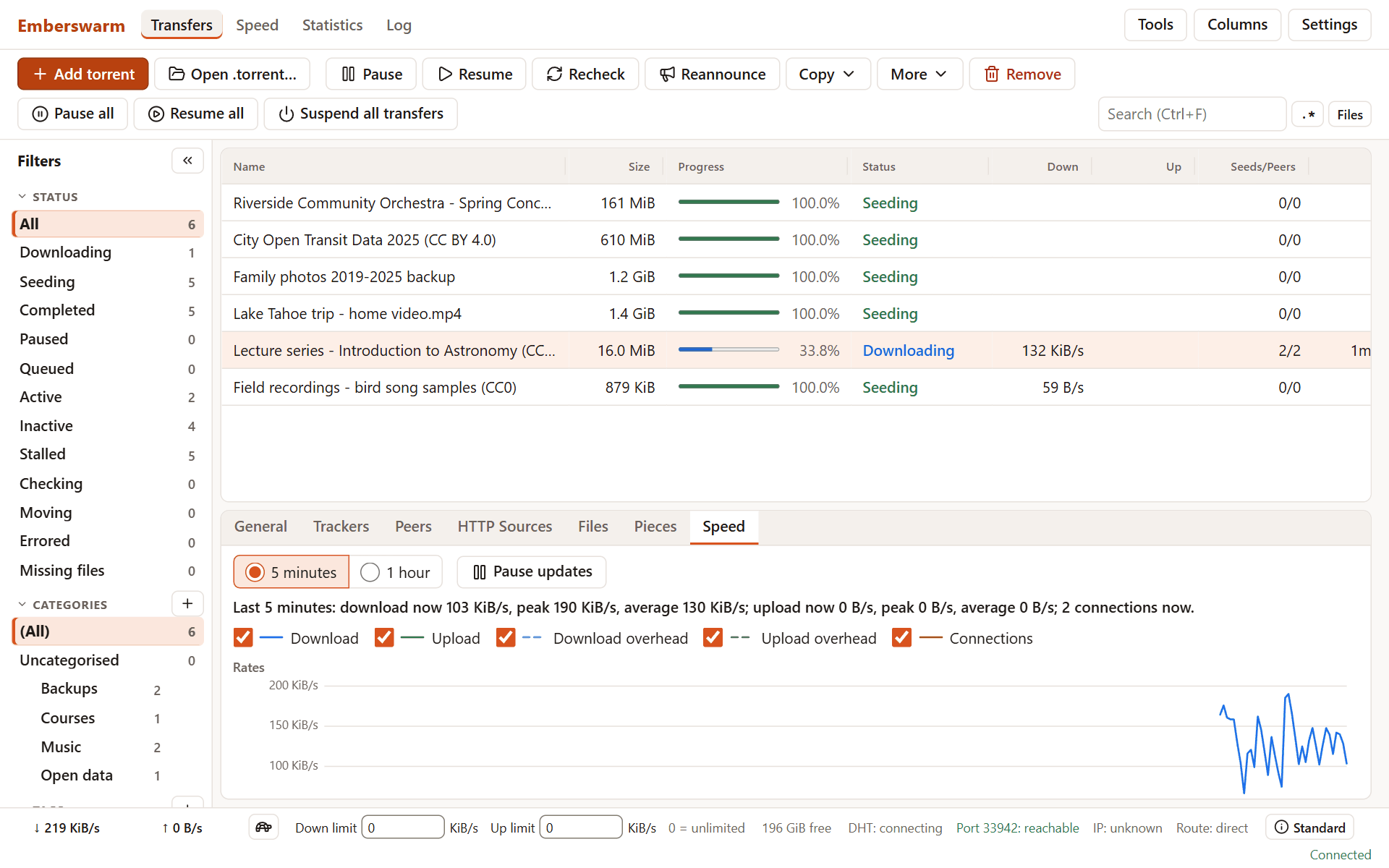
- Speed (Alt+2): graphs of download and upload over the last minutes or hours, with overhead and connections.
- Statistics (Alt+3): totals for this session, all time, each day and each month, share ratio and uptime.
- Log (Alt+4): events and blocked peers, by level. Log files are kept on your PC and rotated.
Updates
Emberswarm does not check for updates unless you ask it to. In the first-run setup or Settings › Updates, turn on Check for updates once a day, or press Check now whenever you like.
- When a newer version exists, Settings › Updates shows it with its notes.
- Download fetches the installer. Nothing downloads before you click.
- Install and restart asks you to confirm, then runs the installer. Your torrents and settings are kept.
Every update is checked twice: the update information must carry XN3 Technologies’ signature, and the installer must match the size and checksum it lists. Anything else is thrown away. Update checks follow your privacy profile and send nothing about your PC or your torrents.
Moving from qBittorrent
Emberswarm uses the same engine as qBittorrent, so your torrents can move over without downloading again. Close qBittorrent, then open Settings › Import and choose your qBittorrent profile folder. Emberswarm shows what it found; import your torrents with their progress, categories and tags. Your qBittorrent folder is left as it was.
Portable copy and command line
The portable copy keeps its settings, torrents and logs in its own folder, so it can live on a USB drive and leaves nothing behind on the PC (apart from Windows’ own small caches). To move it, close it and move the whole folder.
From the command line, Emberswarm.exe accepts torrent files and magnet links and hands them to the copy that is running. --profile <folder> runs a separate set of settings and torrents. Start with Windows, optionally hidden in the tray, from Settings › Desktop app.
Keyboard shortcuts
Everything in Emberswarm works from the keyboard. F1 shows this list in the app.
| Keys | Action |
|---|---|
| Ctrl+O | Add torrents |
| Ctrl+V | Add the links on the clipboard |
| Ctrl+F | Search torrents |
| Ctrl+, | Open settings |
| F1 or Ctrl+/ | Show keyboard shortcuts |
| Alt+1 to Alt+6 | Transfers, Speed, Statistics, Log, Search, RSS |
| Ctrl+Shift+L | Turn alternative speed limits on or off |
| Ctrl+P / Ctrl+S | Pause / resume the selected torrents |
| F2 | Rename the torrent |
| Ctrl+C | Copy magnet links |
| Delete / Shift+Delete | Remove the selected torrents / and their files |
| Enter | Show details |
What Emberswarm contacts
Everything Emberswarm sends goes through one set of network rules, so your profile, proxy, VPN binding and kill switch apply to all of it. Here is everything it can contact:
- Peers and trackers of the torrents you add, after the first-run setup.
- DHT starting points, listed in the setup, if you keep DHT on. Also local peer discovery and your router’s port mapping, if you keep them on.
- Sites you type in: web links to torrent files, blocklist links, plugin and catalog links, an address-check link, your DNS-over-HTTPS server, and your mail server. Each only when used.
- Search sources and feeds you turned on, only while Search or RSS is on.
- Our download server (
emberswarm-updates.s3.us-west-2.amazonaws.com), only if you turn on the update check or press Check now, and when you choose to download an update.
It never contacts XN3 Technologies otherwise. There is no telemetry, no crash reporting (Windows Error Reporting is turned off for Emberswarm) and no cloud service.
Troubleshooting
Windows says “Windows protected your PC”
Emberswarm is code-signed by XN3 Technologies (from version 1.0.3), but SmartScreen can still warn about a newly signed program for a while. Choose More info: if the publisher is XN3 Technologies, choose Run anyway. If it says the publisher is unknown, do not run that file: download it again from this site and check its SHA-256 against the download page.
Nothing downloads
- Did you finish the first-run setup? Emberswarm stays offline until then.
- Is everything paused, suspended or held by the schedule? Look at the status bar.
- Is the privacy badge red, or is a VPN-bound session waiting for the VPN? Networking pauses until it is safe.
- Does the torrent have peers? Look at the Trackers and Peers tabs; force a reannounce.
The port shows “not reachable”
Downloads still work, but fewer peers can reach you. Allow Emberswarm through Windows Firewall (the banner’s button does this), turn on port mapping, or forward the port on your router.
The privacy badge is red
A connection left outside the route you chose, so Emberswarm paused networking. Check your VPN or proxy, then choose Clear the warning in Settings › Privacy profile, or apply the profile again. If the cause is still there, the badge turns red again.
“The stored privacy settings could not be read”
Emberswarm could not read a privacy setting, or its whole settings file, so it cannot tell which privacy profile you had. It stays offline instead of guessing. Open Settings › Privacy profile, choose your profile and choose Apply. If the whole file was unreadable, Emberswarm also asks for the first-run setup again, and it keeps the old file in the profile folder under the name settings.json.corrupt- followed by the date.
“Emberswarm could not start”
The message says what stopped it. If it names a program file that is missing or blocked, security software has probably removed or blocked that file: allow it there, then install Emberswarm again. If it says the settings file cannot be opened, close any backup, sync or editing program that has the profile folder open and start Emberswarm again.
“The built-in I2P router is no longer part of Emberswarm”
Versions up to 1.0.4 included an I2P router (i2pd). Version 1.0.5 leaves it out, because some security software flags any program that contains an I2P router, whatever the program does with it. If your privacy profile used that router, Emberswarm stays offline after the update instead of sharing some other way. Your torrents and settings are kept. Install and start an I2P router yourself (i2pd or Java I2P) with its SAM bridge on, then open Settings › Privacy profile, enter the router’s SAM address and choose Apply. You can also choose another profile there.
Files are missing
If you moved or deleted a torrent’s files, open the torrent: you can download them again or point to their new place.
Something else
Email info@xn3tech.com. Say which version you use (Settings › About) and what you see. Do not send your log unless we ask; it stays on your PC.
Uninstalling
Open Windows Settings › Apps › Installed apps, find Emberswarm and choose Uninstall. It removes the program, its shortcuts, its firewall rules and its registry entries. It never touches your downloaded files, and it asks before deleting your torrent list and settings. For the portable copy, delete its folder.
Legal use and licence
BitTorrent is a lawful way to share files, widely used for free software, open data, archives and creative works shared by their makers. Emberswarm comes with no sources for anything else. Share only what you have the right to share, and follow the law where you live.
Emberswarm is free software from XN3 Technologies, licensed under the GNU General Public License, version 3 or later. You may use, study, share and change it under that licence. It comes with no warranty. Email info@xn3tech.com for the complete source code of any released version.
Emberswarm includes libtorrent, Python, Electron and other open-source parts, each under its own licence. Their notices are in Settings › About, and the component list names every part. The country shown beside a peer comes from a database inside Emberswarm: IP Geolocation by DB-IP, under the Creative Commons Attribution 4.0 licence.